
How to extend a laptop battery's runtime and lifespan
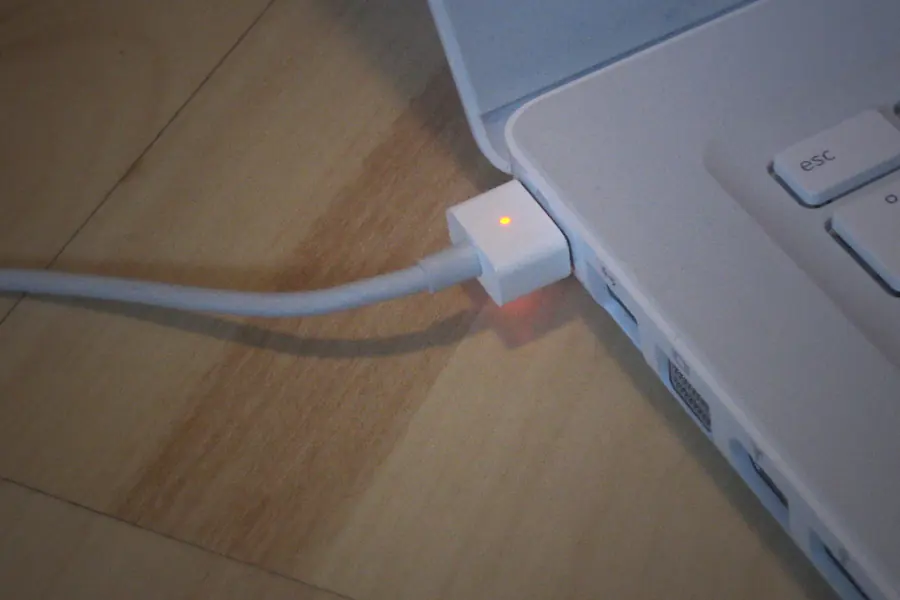
A laptop battery weakens over time, and what once lasted a whole day suddenly does not last even a few hours. Part of the wear is natural, but a lot also depends on how you use the laptop. Let us explain how to extend both the runtime and the lifespan of the battery.
How a battery ages
Laptops have lithium batteries that wear out through charge cycles and over time. One cycle means using up 100 % of the capacity, but not all at once, two times 50 % counts as a single cycle. Manufacturers commonly state retaining roughly 80 % of the original capacity after about 500 to 1000 cycles. So after a few years a battery has a smaller capacity than when it was new, which is completely normal. The good news is that with the right use this wear can be slowed.
How to extend the battery’s lifespan
- Do not keep the battery permanently at 100 % or drain it to 0 %. Lithium batteries are happiest moving in a range of roughly 20 to 80 percent.
- Avoid heat. Heat is the most harmful thing for a battery, do not leave the laptop in the sun, in a hot car or on a blanket that blocks ventilation.
- When permanently powered from the socket, enable, if the laptop offers it, a charging limit at 80 %, which spares the battery.
How to extend runtime on a single charge
- Lower the screen brightness, it is the biggest power drain.
- Turn on the energy saver in the settings.
- Turn off Bluetooth and wifi when you do not need them.
- Close demanding programs and background processes (syncing, updates) and unnecessary browser tabs.
How to check the battery’s health
The real state of the battery is shown by comparing the design (original) capacity with the current full capacity. On Windows the command powercfg /batteryreport in the command line does this, generating an HTML report including the cycle count. On a Mac you find the health in Settings under Battery. If the current capacity is below roughly 80 % of the original, the battery is noticeably worn.
Battery myths
Modern lithium batteries do not need to be “trained” or fully discharged, that is a relic of old nickel types. Deep discharge to 0 % actually harms lithium, it is happiest with frequent top-ups in smaller chunks. An occasional calibration (a full cycle from full to almost zero and back now and then) only helps the percentage indicator show accurately, not the capacity itself. It is also not true that leaving the laptop always plugged in destroys the battery, modern laptops stop loading the battery once charged to 100 %, and some offer optimized charging too.
When to replace the battery
- The runtime has dropped noticeably and you can barely use the laptop without a socket.
- The laptop switches off sooner than it shows a full battery.
- The battery is swollen, which you recognize by a bulging bottom or touchpad. Address this immediately, a swollen battery is a safety risk.
Is your battery weakening or swollen? Get in touch, we will check the battery and replace it safely. For overheating, maintenance and a cooling pad also help.
Laptop battery draining faster than it used to?
We check the battery's health, advise on proper charging habits, and replace it safely if needed. For households and companies in the Liptov region.
Get my battery checkedThis article is part of our Repair and maintenance overview.
Comments and questions 0
We keep the discussion to the point. Ads, links to other services, profanity and personal attacks will not be published. Neither will posts containing other people's personal data.
Frequently asked questions
Does it harm the battery to keep a laptop plugged in all the time?
Do I need to fully discharge a lithium battery now and then to make it last longer?
How do I check the real health of my laptop battery?
Why does my laptop battery not last as long after a few years?
What drains a laptop battery the fastest on a single charge?
When is a swollen battery dangerous and what should I do?
Need help with IT?
We will take care of your computers, networks and security - for businesses and households in the Liptov region.
Contact us