
SD and microSD memory cards: speed classes and capacities
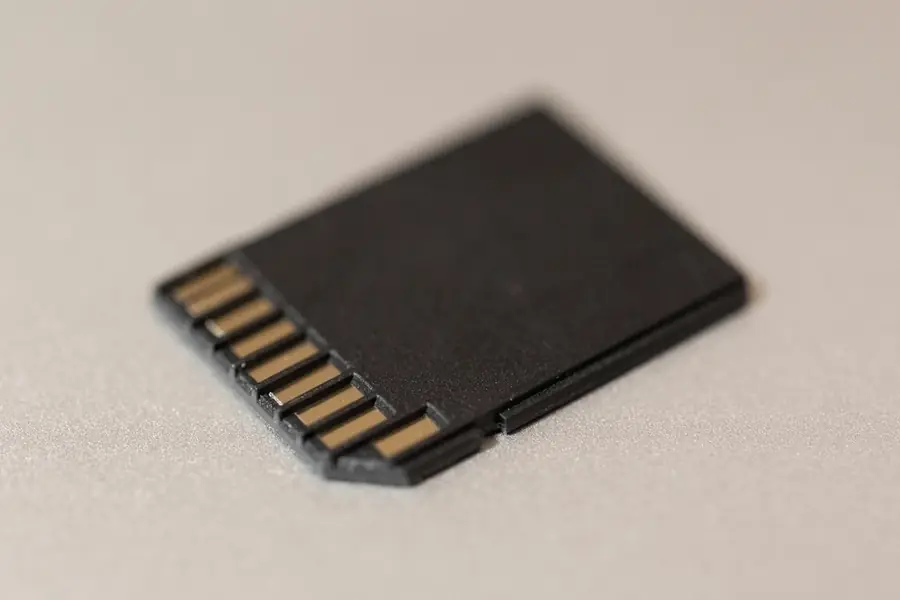
A memory card looks like a simple thing, yet its packaging carries a pile of markings and classes. Choose the wrong one and the camera will not record 4K, or the phone stutters. Here is what those markings actually mean and how to pick the right card.
SD versus microSD
They differ mainly in size. microSD is tiny and goes into phones, drones, action and security cameras. SD is larger and used in cameras and laptops. A microSD card slots into an SD reader using the included adapter.
Capacities: SDHC, SDXC and SDUC
The label tells you the maximum capacity:
- SDHC up to 32 GB.
- SDXC up to 2 TB, the most common today.
- SDUC even more, for specialised use.
Older devices may not handle the larger cards, so check support first.
Speed classes: what to watch for
This is what decides whether a card can keep up with smooth video. Several markings appear at once:
- UHS Speed Class: U1 (10 MB/s) and U3 (30 MB/s).
- Video Speed Class: V10, V30, V60, V90, based on the minimum write speed for video.
- Application Performance Class: A1 and A2, for fast app loading, mainly relevant on phones.
In short: for 4K video you need at least U3 or V30, and for apps on a phone A2.
A full table of the V, U and A classes
The table below gathers all the common markings in one place:
| Class | Minimum write speed | Best suited for |
|---|---|---|
| U1 (UHS Speed Class 1) | 10 MB/s | Everyday photos, HD video, file backups |
| U3 (UHS Speed Class 3) | 30 MB/s | Full HD and 4K video, faster burst shooting |
| V6 (Video Speed Class 6) | 6 MB/s | Lower resolution video |
| V10 (Video Speed Class 10) | 10 MB/s | Full HD video from typical cameras |
| V30 (Video Speed Class 30) | 30 MB/s | 4K video, dashcams, drones |
| V60 (Video Speed Class 60) | 60 MB/s | Higher quality 4K, slow motion footage |
| V90 (Video Speed Class 90) | 90 MB/s | 8K video, professional cameras at high bitrate |
| A1 (Application Performance Class 1) | around 1500 IOPS read, 500 IOPS write | Launching and running everyday apps straight from the card |
| A2 (Application Performance Class 2) | around 4000 IOPS read, 2000 IOPS write | Faster app performance, games stored directly on the card |
The markings combine, a card can carry U3, V30 and A2 all at once, meaning it meets all three standards simultaneously. When buying, look for the marking that matches your device: cameras and dashcams follow the V class, apps and boards like a Raspberry Pi follow the A class, and older devices often only recognise U.
Choosing a card step by step
Instead of guessing, follow a simple process:
- Find out what the device actually needs. Check the manual of your camera, dashcam or console, where the manufacturer states the minimum required class.
- Pick capacity based on how much data you will produce. An hour of 4K video takes up dozens of gigabytes, so for video it is worth going for 128 GB or more.
- Check the device’s interface. If it only supports UHS-I, a UHS-II card will not hurt, but you will not get its full speed either.
- Buy from a trusted seller, not from an anonymous listing with a suspiciously low price.
- Test the card right after buying it (see the section on fake cards below), and only then trust it with important data.
Specific recommendations by use case:
- Camera shooting 4K video: V30 or higher, at least U3, capacity of 128 GB or more, and V60 or V90 for professional work.
- Dashcam: U3 or V30 with support for continuous writing. A dashcam records in a loop and keeps writing constantly, so an ordinary card wears out fast.
- Game console: a fast A2 card with plenty of capacity, 256 GB or more, since modern games run to dozens of gigabytes.
- Tablet or phone for photos: U1 is enough, ideally with an A1 or A2 rating if you plan to install apps directly on the card.
- Raspberry Pi: an A1 or A2 card with good wear resistance, since the system constantly writes logs and temporary files to it.
Common mistakes and myths
- Higher capacity supposedly means higher speed. Not true, capacity and speed are two independent properties. Slow cards with large capacity exist, and so do fast cards with small capacity.
- Any card is supposedly fine for 4K video. Without a sufficient write class (at least U3 or V30) recording will stutter, the camera may throw an error, or the footage will simply drop frames.
- A cheap fake card with huge capacity is supposedly a good deal. Counterfeit cards run modified firmware that fakes a large capacity, while the real usable space is only a fraction of what is advertised, once that real capacity fills up the card starts overwriting or losing data.
- The brand supposedly does not matter as long as it is cheap. Unbranded cards tend to be less reliable under sustained load and extreme temperatures. For important data, family photos or business backups, a trusted brand is worth the extra cost.
- A card supposedly lasts forever. Memory cells have a limited number of write cycles. Under heavy use, for example in a dashcam or security camera, a card wears out far faster than one used for occasional photography.
Troubleshooting common problems
- The card does not show up in the device. Try a different slot or reader, check that the card is not physically damaged, and confirm the device supports its file system, older players may not read exFAT.
- The card is slow or video keeps stuttering. Check whether the card’s class matches what the device needs. The card may also have simply worn out, a speed test followed by a replacement usually solves it.
- Write errors or lost files. Stop using the card immediately, copy off everything you can with a data recovery tool, and then replace the card. Repeated errors are a sign that failure is close.
- Safe formatting and ejecting. Format the card directly in the device you will actually use it in, such as the camera or dashcam, rather than always on a computer, this avoids file system compatibility issues. Before removing a card from a computer, always eject it safely through the operating system first, otherwise you risk corrupting data that is still being written.
- Extending the card’s lifespan. Do not pull the card out while it is being written to, do not leave it permanently full, move data off it and reformat it from time to time, and for devices with continuous writing, such as a dashcam or security camera, use cards specifically built for sustained writing.
Read versus write
Manufacturers like to advertise a high read speed, but when recording video the write speed is what matters, and it tends to be lower. That is exactly what the V and U classes guarantee.
Watch out for fake cards
The market is full of counterfeits that pose as a large, fast card but in reality have a small capacity and start overwriting or losing data once full. So it pays to test a new card with a program that actually writes and verifies the full declared capacity (for example H2testw on Windows, or F3 on Linux and Mac). It takes a while, but it exposes the fraud before you find out through lost photos. Buy from trusted sellers and brands.
A suitable reader and interface
A fast card will not help if a slow reader or an old slot holds it back. You get the top speeds of UHS-II cards only in a reader and device that support UHS-II (you recognize them by the second row of contacts on the card). In an older slot the same card will work, but slower. For transfers to a computer, choose a reader with USB 3.0 or newer.
A card is not a backup
Memory cards wear out and can fail without warning, so regularly back up important data from them to another place.
Which card for what
| Device | Recommended card |
|---|---|
| Phone | microSD U1, ideally A2 |
| 4K camera or drone | microSD U3 or V30 |
| Security camera | microSD U1 to U3 (withstands constant writing) |
| Professional photo and video | SD V60 or V90 |
Not sure which card to pick, or lost data from a card?
We help you choose the right card for your device and can also assist with recovering data from a damaged card. For homes and businesses in the Liptov region.
Get adviceThis article is part of our Hardware and components overview.
Comments and questions 0
We keep the discussion to the point. Ads, links to other services, profanity and personal attacks will not be published. Neither will posts containing other people's personal data.
Frequently asked questions
What is the difference between an SD and a microSD card?
What do SDHC, SDXC and SDUC mean?
Which speed class do I need for 4K video?
How can I spot a fake memory card?
Why does a card not show up or run slowly in my device?
How do I safely format and eject a memory card?
Need help with IT?
We will take care of your computers, networks and security - for businesses and households in the Liptov region.
Contact us