
A laptop or MacBook without a network card: a USB adapter helps
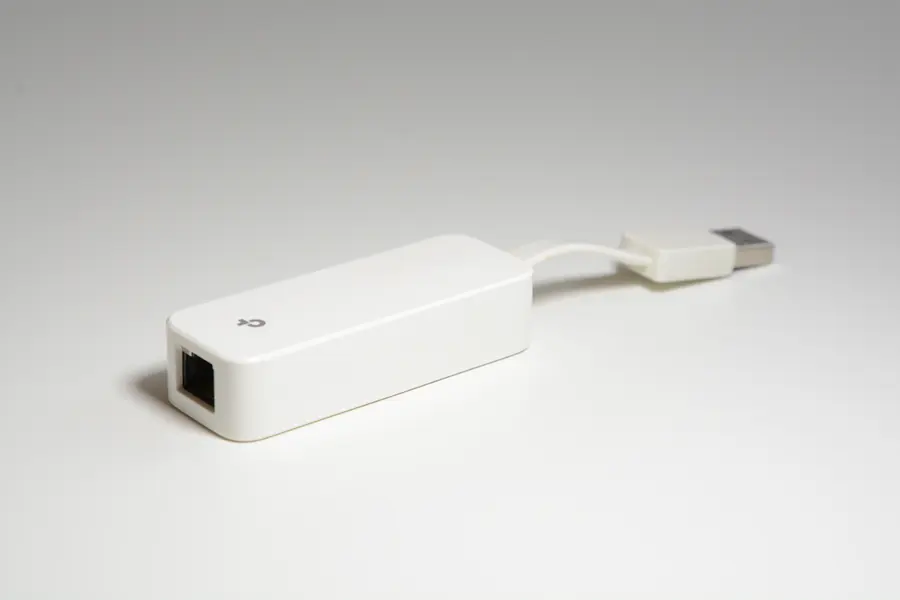
Did you buy a thin laptop or MacBook and find it has no connector for a network cable (RJ45)? It is common, and the solution is fortunately cheap and simple. Let us explain why ethernet is disappearing from laptops and how to easily add wired internet.
Why new laptops have no ethernet
The connector for a network cable (RJ45) is fairly thick and no longer fits into thin laptops. So manufacturers leave it out and rely on wifi. With MacBooks and ultra-thin laptops this is almost always the case. A wired connection does come in handy occasionally, though, especially when you need stability.
The solution: a USB network adapter
You just buy a small USB network adapter, that is a converter from USB to ethernet (RJ45). You plug it into a USB port, the network cable into it, and the laptop has wired internet. The adapter is small, cheap and you carry it only when you need it.
USB-A or USB-C
Adapters come in two variants depending on the port your laptop has:
- USB-C for MacBooks and modern laptops with this connector.
- USB-A for older laptops with the classic flat USB.
If you are not sure which port you have, the article on USB connectors helps. If needed, an adapter between them also exists.
What to look at when choosing
- Speed. Choose a gigabit adapter (1 Gbit/s), not a slow 100 Mbit one, so you do not throttle a fast connection. If you have a faster line or a NAS, 2.5-gigabit adapters (2.5 Gbit/s) also exist, usually with a USB-C connector.
- Compatibility. With Windows and macOS most adapters work right away, sometimes a driver needs installing.
- Chip quality, which affects reliability, especially with longer use.
Watch the speed of the USB port itself too. A gigabit adapter works even on older USB 2.0, but for a 2.5-gigabit one you need a USB 3.0 (USB 3.2 Gen 1) port, otherwise you will not see the speed.
If you also connect a monitor and other devices to the laptop, consider a docking station or a USB-C hub straight away, which usually include ethernet along with other ports (HDMI, USB, a card reader). With a single cable you add the network and everything else at once, and connect the laptop to your desk in one move.
When to reach for an adapter
- Thin laptops and MacBooks that have no RJ45 port at all.
- A broken network card in an older laptop, where a USB adapter replaces the dead port without opening the device.
- A temporary need for a cable in a place where wifi is weak or congested.
When a cable really comes in handy
Even though wifi is enough for ordinary work today, a cable is more stable and faster. The main advantage is lower and steadier response time (latency) and the fact that you do not share the band with neighbouring networks. You appreciate it for video calls, gaming, large transfers and anywhere wifi is weak or congested. You will find more on the difference between cable and wifi in a separate article.
Not sure which adapter you need for your laptop? Get in touch, we will advise and supply the right solution.
We will help you pick the right USB adapter
We find and supply the right adapter for your laptop or MacBook, and advise on docking stations or hubs too. For homes and businesses in Liptov.
Get in touchThis article is part of our Hardware and components overview.
Comments and questions 0
We keep the discussion to the point. Ads, links to other services, profanity and personal attacks will not be published. Neither will posts containing other people's personal data.
Frequently asked questions
Why does my new laptop have no port for a network cable?
Which USB network adapter should I buy for a MacBook?
Is there a difference between a USB-A and a USB-C network adapter?
Does a USB network adapter work right away, or do I need to install a driver?
Should I buy a gigabit or a 2.5-gigabit adapter?
Is it better to buy a docking station instead of a separate adapter?
Need help with IT?
We will take care of your computers, networks and security - for businesses and households in the Liptov region.
Contact us