
Who is connected to my WiFi? How to find out and secure the network
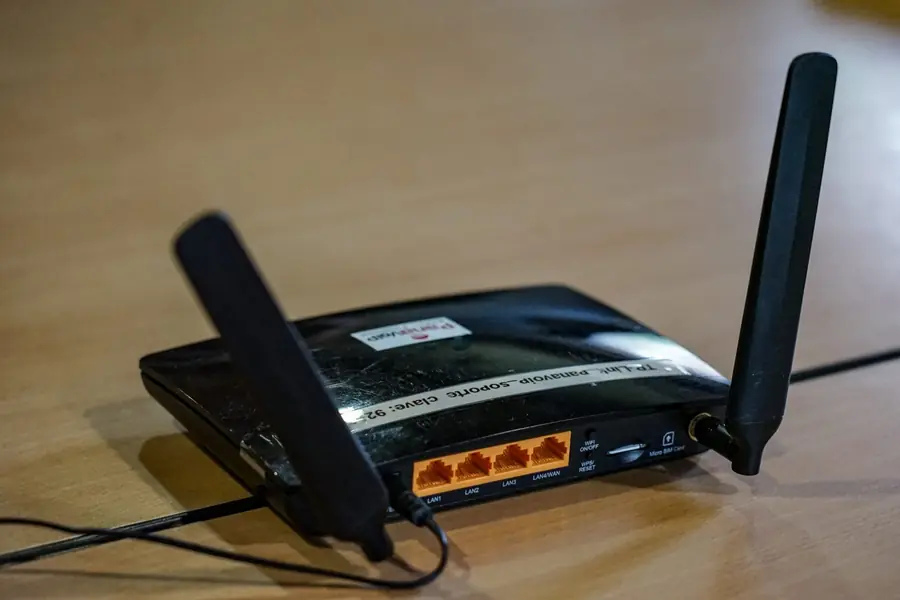
Has your internet slowed down, or do you just feel that someone unfamiliar is hanging on your WiFi? It is not paranoia, a poorly secured network tends to be an easy target. The good news is that it can be easily checked and solved. Let us get to it.
How to find out who is connected
The most reliable way is to look directly into the router:
- Log in to the router (via the address on the sticker on the device).
- Find the connected devices section (often “Connected devices”, “DHCP clients” or “Devices”).
- You will see a list of everything currently connected, with a name and an address.
There are also simple manufacturer apps that show the devices on the network clearly, without needing to log in through a browser at all. The principle of addresses is explained in the article on the basics of networking.
Step by step: logging in to the router’s admin panel
If you have never logged into your router’s settings before, the process is simple and largely the same for most homes:
- Find the router’s IP address. Most commonly 192.168.0.1 or 192.168.1.1, some brands use 192.168.1.254 or another address. The exact number is usually printed on a label on the bottom or back of the router.
- Open a web browser (this works the same way on a computer, tablet or phone) and type that IP address into the address bar, not into a search box.
- Enter the login details. If you have never changed them, the combination printed on the router’s label usually works, or a default such as admin and admin, or admin and password. Internet providers often set their own unique default password directly on the device they hand over to you.
- Locate the device list in the menu. Look for an item called “Connected Devices”, “DHCP Client List”, “Attached Devices” or simply “Devices”. It usually sits under a Network section, or right on the dashboard after login.
- Read the device table. You will see each device’s name, its IP address, its MAC address, and often whether it is connected over WiFi or through a network cable.
Finding the same information through a manufacturer’s app
If logging in through a browser feels like a hassle, many manufacturers offer a dedicated app that manages the network in a simpler, more visual way:
- TP-Link Tether - for TP-Link routers and Deco mesh systems.
- Mi Home / Mi WiFi - for Xiaomi routers.
- ASUS Router - for Asus routers, including AiMesh setups.
- Google Home - for Google WiFi and Nest WiFi.
- Provider apps (such as My Telekom, Magio TV or Orange) for routers rented from an internet provider.
Once installed and signed in, these apps automatically find the router on your network and display connected devices, often with an icon for the device type (TV, laptop, printer) and a one-tap option to block a device straight from the app.
At a glance: where to find the device list by router brand
| Router brand | Default admin address | Where to find connected devices |
|---|---|---|
| TP-Link | 192.168.0.1 or tplinkwifi.net | Devices / Client List |
| Mikrotik | 192.168.88.1 | WinBox or webfig, then IP, DHCP Server, Leases |
| Asus | 192.168.1.1 or router.asus.com | Network Map, Clients |
| D-Link | 192.168.0.1 | Status, LAN or DHCP Client List |
| Huawei / provider-branded units | 192.168.1.1 or 192.168.100.1 | Home Network, Connected Devices |
| Cable ISP units (Compal, Sagemcom) | 192.168.0.1 or 192.168.1.1 | Status, Devices on Network |
How to spot an unfamiliar device
The list tends to have more items than you expect, because almost everything is connected today. Proceed like this:
- List your devices. Phones, laptops, TV, console, smart devices, cameras.
- Compare with the list in the router. What you cannot place is suspicious.
- Help yourself by turning things off. When you temporarily turn a device off, it disappears from the list, and so you identify it.
Note, many devices announce themselves with an incomprehensible name, so an unknown name in itself need not mean an intruder.
Identifying a device by its MAC address
Every network device has a unique MAC address made up of six pairs of characters separated by colons, for example AC:DE:48:00:11:22. The first three pairs, AC:DE:48 in this example, are called the OUI and uniquely identify the manufacturer of the network adapter. Enter that prefix into an online MAC lookup tool such as macvendors.com and you will learn whether it belongs to Apple, Samsung, Xiaomi, Huawei or another vendor. If the router shows a manufacturer for an unknown device that nothing in your home matches, that is a strong signal it does not belong to you. The same goes if you spot several devices from a network chipset vendor commonly found in cheap phones or single board computers, and you do not own anything like that yourself, it is worth a closer look.
What to do if someone unfamiliar is there
The fastest and most effective solution:
- Change the WiFi password to a new, strong and unique one. This disconnects everyone and reconnects only your devices.
- Use WPA3 or WPA2 security. Older types are easily broken.
- Change the password to the router itself too, if it is still the factory one.
- Block the intruder’s MAC address directly in the router. Most admin panels have a feature called “MAC Filtering” or “Access Control” where you can add a specific address to a blacklist.
- Restart the router. After changing the password and blocking the MAC address, a restart makes sure the changes take effect immediately and ends any lingering old connections.
How to secure the network reliably
So you do not have to solve the problem repeatedly:
- A strong and unique WiFi password. No birth dates or “12345678”.
- Up-to-date router firmware that fixes security holes, more in the article on how to secure a router.
- Disable WPS, which tends to be a weak spot.
- A separate guest network for visitors, so they have no access to your devices. The principle is complemented by a captive portal.
- Separated smart devices, more in the article on securing a smart home.
Common mistakes and myths
- “Hiding the SSID protects me.” A hidden network name does not slow an attacker down, the network can still be captured while one of your own devices connects, it mainly just makes connecting your own devices more of a hassle.
- “MAC filtering is bulletproof.” A more experienced attacker can simply impersonate a MAC address, known as spoofing, so filtering only works as an extra hurdle, not as the main line of defense.
- “I set it up once, that is it.” Router firmware needs regular updates, since security holes are discovered over time and manufacturers patch them in new versions.
- “A weak password is fine, who would target me specifically.” Most attacks on home networks are automated and are not aimed at a specific person, they simply scan every network within range and go after the weakest ones.
Why it matters
Someone unfamiliar on your WiFi is not just about slowed internet. They can monitor your traffic, get to shared files or abuse your network for illegal activity that is then linked to you. That is why securing it is worth taking seriously.
Conclusion
Finding out who is on your WiFi comes down to checking the router or a manufacturer’s app. If you find something suspicious, the MAC address will reveal the device’s manufacturer, and changing the password, blocking the intruder and locking the network down properly takes care of the rest. A few minutes of prevention saves you trouble and slowed internet.
Not sure who is really on your network?
We will check your connected devices, set up strong security and a separate guest network. For homes and businesses in the Liptov region.
Secure my WiFiThis article is part of our Cybersecurity overview.
Comments and questions 0
We keep the discussion to the point. Ads, links to other services, profanity and personal attacks will not be published. Neither will posts containing other people's personal data.
Frequently asked questions
What is the default IP address to access my router's admin panel?
How do I know an unfamiliar device on the list is really an intruder and not something I forgot about?
Is changing the WiFi password enough to fix an intruder problem?
Do I need WPA3, or is WPA2 good enough?
Why disable WPS when it is such a convenient way to connect devices?
Is a separate guest network worth setting up if I rarely have visitors?
Need help with IT?
We will take care of your computers, networks and security - for businesses and households in the Liptov region.
Contact us