
Windows setup does not see the disk? Intel RST is usually to blame
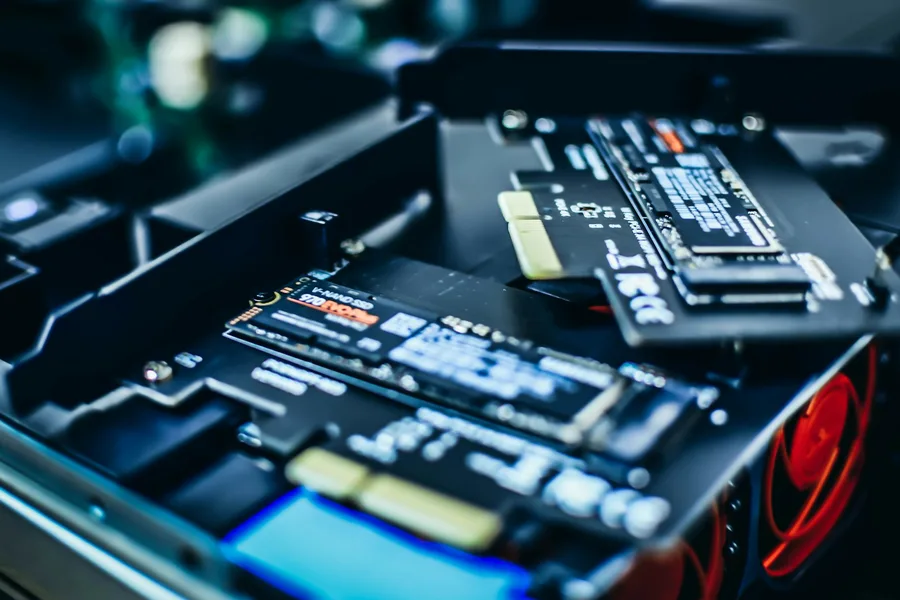
You buy a new laptop or computer, prepare an installation USB stick, start the Windows setup and get all the way to the screen where you choose where to install the system. Except the disk list is empty. Not a single disk. At that moment most people panic that they got a machine with a broken drive. The good news is that the disk is almost always fine, the installer just cannot see it yet. And in the vast majority of cases the reason is one and the same.
Why it happens
The culprit is usually the mode the storage controller is set to in the BIOS. On modern laptops the Intel RST mode, or the newer VMD, is often enabled from the factory instead of the standard AHCI mode. The problem is that the Windows installer has no driver for this mode, so it simply does not know about the connected disk. The disk works the whole time, it just lacks an interpreter between itself and setup.
It is one of the most common reasons a clean install on a new machine gets stuck right at the start. There is nothing to return to the shop.
What Intel RST (Rapid Storage Technology) is
Intel Rapid Storage Technology is an Intel technology for managing storage. It enables advanced things like combining disks into RAID arrays or accelerating and managing disk power. On today’s platforms it is tied to the so-called VMD (Volume Management Device), which is essentially how the processor talks to fast NVMe disks.
The key point for an ordinary user is that this mode requires its own driver. Laptop makers tend to have it enabled from the factory, because it brings certain advantages, but at the cost that without the added driver the Windows installer will not show the disk.
Solution 1: load the driver during installation
The first way leaves the RST mode as it is and just supplies setup with the missing driver:
- On the laptop maker’s support page (for your exact model) download the Intel RST or VMD driver, usually under storage drivers.
- Extract it into a folder on a USB stick, ideally the same one you are installing from, so you do not have to swap them.
- In setup, on the disk-selection screen, click Load driver, point it to that folder and confirm.
- Once loaded, the disk appears in the list and you continue with the installation as normal.
This approach suits you when you want to keep the RST mode, for example because of features the maker relies on.
Solution 2: switch the BIOS to AHCI
The second way is often simpler. In the BIOS (which you reach with a key at startup, usually F2 or Del) you find the storage mode setting and switch it from RST or RAID to AHCI. AHCI is the standard mode that practically every system supports without add-ons, so the disk shows up during installation on its own.
This solution is ideal for a clean install onto a new disk. But it has one important caveat you should know.
Careful with an already installed system
If you already have Windows installed in RST mode and you just switch the BIOS to AHCI, the system will stop booting and greet you with a blue screen about an inaccessible disk. That is because Windows remembers the mode and it suddenly no longer matches. So the rule is: handle the storage mode before installation, not after. If you need to change the mode on an already running system, it can be done without reinstalling, but it is an extra procedure that has to be done correctly, otherwise you break the system.
Other, less common causes of an empty list
To be fair, Intel RST is not the only possible reason, though by far the most common on a new machine. An empty disk list can occasionally be caused by a poorly seated M.2 disk, a loose or disabled connector, or genuinely a faulty unit. So if both the driver and AHCI fail, it is worth checking whether the disk is physically seated correctly. On a new laptop, though, that is more of a rarity.
When to leave it to us
Adding a driver or switching the mode in the BIOS is within reach of a patient home user. But there are situations when it is calmer to call us: when you are not sure which driver is the right one, when you need to change the mode on a system that already holds your data, or when the disk does not show up even after all the steps. Then we can quickly tell whether it is just a setting or genuinely a broken disk, and install the system so that it runs reliably.
Conclusion
An empty disk list during Windows setup looks scarier than it really is. In the vast majority of cases it is not a broken disk but the Intel RST or VMD mode missing a driver. The fix takes a few minutes: either add the driver to setup, or switch to AHCI in the BIOS. And when you prepare the installation stick with Rufus or Ventoy and add the driver onto it right away, you have everything at hand and the installation goes smoothly.
New computer does not see the disk or the system will not install?
We will prepare, configure and install the system so it works, and honestly check whether the disk is fine. For homes and businesses in Liptov.
Get in touchThis article is part of our guide to Computer service and maintenance.
Comments and questions 0
We keep the discussion to the point. Ads, links to other services, profanity and personal attacks will not be published. Neither will posts containing other people's personal data.
Frequently asked questions
Why does Windows setup not see the disk?
What is Intel RST (Rapid Storage Technology)?
How do I make the disk appear during Windows setup?
Where do I download the Intel RST or VMD driver?
Should I switch the BIOS to AHCI or load the driver?
Does Linux see the disk even with Intel RST or VMD?
Need help with IT?
We will take care of your computers, networks and security - for businesses and households in the Liptov region.
Contact us