
Computers are not vacuumed but blown out: and mind the fans
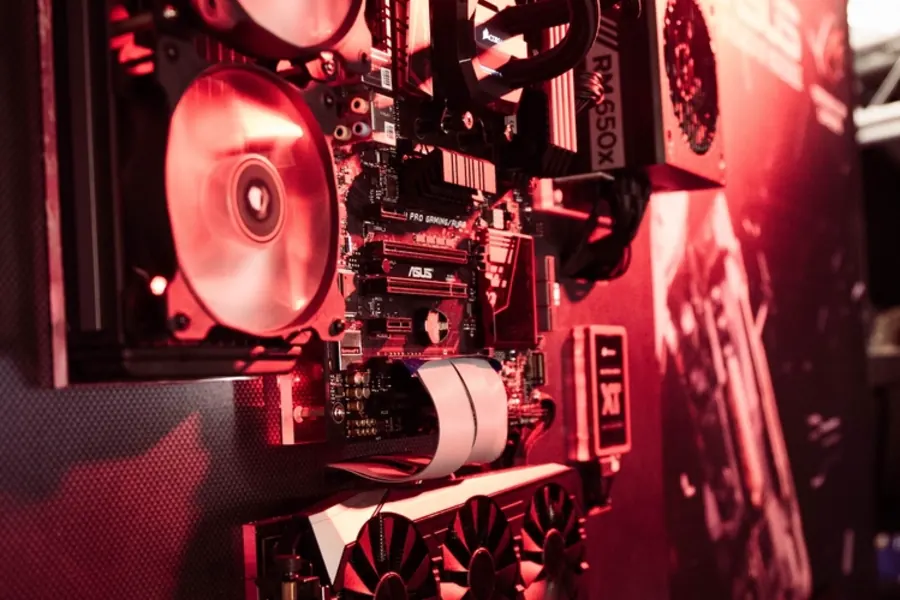
Dust is a computer’s biggest enemy. It settles on heatsinks and fans, the computer overheats, hums and loses performance. Many people clean it the wrong way, though, and risk damage doing so. Let us explain why a computer should not be vacuumed but blown out, and why you must be very careful with the fans while blowing.
Blow out, do not vacuum
An ordinary vacuum cleaner is not suitable for cleaning the inside of a computer for two reasons. First, it creates static electricity, which can damage sensitive parts (a so-called electrostatic discharge). Second, it is ineffective, because dust clings in the fins of the heatsink, where the suction does not reach. The right way is to blow the dust out with compressed air from a can, an electric blower or a compressor.
Most important: block the fans
Many people do not know this, and this is where the biggest mistake is made. When you blow a stream of air at a fan, it spins much faster than the speed it is built for. A fast-spinning fan then acts like a small generator, and the voltage it produces can flow back into the motherboard. This surge can burn out the fan and the components on the board.
So when blowing, always stop the fan blades mechanically, for example hold them with a finger or put a toothpick between them, or rather disconnect the fan from the board. Never let a fan spin freely from the stream of air.
A practical step by step procedure
Cleaning a computer is not complicated, but it pays to follow an order and a few rules so nothing gets damaged.
Preparation
- Turn the computer off and unplug it from the mains (for a laptop, it is also a good idea to disconnect the charger).
- Before opening the case, get rid of static electricity by touching a grounded metal object, for example a radiator, ideally use an antistatic wrist strap.
- Move outside or to a well ventilated room, the dust scatters as you blow and you do not want it settling back in the living room.
- Open the case and set the computer on a stable hard surface, not on a carpet, which raises static on its own.
Order of cleaning the components
- First blow out the case’s dust filters and grilles. If they are removable, wash them separately under running water with a bit of dish soap and let them dry fully before putting them back.
- Continue with the case fans, holding each one with a finger or a toothpick so it does not spin, and blow outward, away from the case.
- Clean the CPU heatsink, aiming the air stream into the fins from the side so the dust is pushed out rather than deeper into the heatsink.
- Clean the GPU heatsink in the same way. This is usually where the most dust builds up, since the graphics card’s fans draw air directly from underneath the case.
- Do not forget the power supply (PSU), its fan and grille, where dust settles just as heavily and poor airflow through it shortens its lifespan.
- Hold the nozzle at least 5 to 10 centimetres away from the components and blow in short bursts of one or two seconds, never one long continuous stream.
- For stubborn caked on dust, use a soft brush together with blowing, never a wet cloth or a damp wipe.
- Finally, put the case back together and let the computer air out for a few minutes before plugging it back in.
Laptop versus desktop
Cleaning a laptop is trickier because the cooling system is compact and a proper teardown often means unscrewing the bottom cover. If you are not confident, it is enough to gently blow dust out through the vents and grilles without opening the chassis, aiming the air so the dust comes out rather than getting pushed further inside. Full disassembly with a thermal paste change is best left to a repair shop, since the risk of damaging small connectors is higher on a laptop than on a desktop.
What to use for what
| Tool | Best for | Advantages | Downsides and safety |
|---|---|---|---|
| Canned compressed air | Laptops, keyboards, small jobs | Available in stores, precise and controllable stream, no electricity or compressor needed | Tilting the can can spray freezing condensate onto components, gets expensive with frequent use |
| Compressor | Desktops, general cleaning, professional servicing | Strong and steady pressure, economical for repeated use | Needs a water separator and possibly an oil filter, too high a pressure can damage delicate parts |
| Electric blower without cans | Households without a compressor, routine maintenance | No chemicals or condensate, reusable, quiet | Lower pressure than a compressor, less effective on thicker caked on dust |
| Vacuum cleaner with reverse blow mode | Emergency fallback if nothing else is available | Most households already own one | Usually not enough for deeply packed dust, higher static electricity risk, must never be used in suction mode directly on the board |
A compressor: what to watch out for
A compressor is excellent, but has its pitfalls. First blow the condensate (water) out of the tank, otherwise you spray it into the computer. Do not use too high a pressure, a moderate one is enough, set the pressure regulator lower than you would for inflating tyres. Dry air is ideal, so a water separator helps. And note that an oil compressor can push a fine oil mist into the air, which does not belong in a computer, so a good oil filter or an oil-free compressor is preferable.
Common mistakes and myths
- “A vacuum cleaner is a safe substitute for blowing.” It is not, even though this belief is widespread. Suction generates more static electricity than most people expect, and it still cannot properly pull dust out of the heatsink fins.
- “You should blow as close to the part as possible.” The opposite is true. Too short a distance and too strong a stream can bend thin fan blades or damage sensitive contacts. Keep a reasonable distance and moderate pressure.
- “Cleaning the computer once every few years is enough.” Under ordinary home use, a performance cooler visibly clogs up within about half a year. A longer interval means needless overheating and noise for months on end.
- “Static electricity is just a myth, nothing happens.” An electrostatic discharge often does not destroy a part instantly, but it can weaken it and shorten its lifespan. Grounding is not something to skip even for “just blowing out dust.”
- “Blowing into a running computer will not break anything.” Blowing into a computer that is powered on, or merely switched off but still plugged in, is a real risk. Always unplug the power cable completely first.
Troubleshooting after cleaning
If the computer is still noisy or overheating after a thorough cleaning, dust is usually no longer the cause.
- A noisy fan even after cleaning usually points to a worn bearing. Only replacing the fan helps at that point, lubricating it is only a temporary fix.
- High temperatures despite a clean heatsink often mean the thermal paste has dried out or hardened and lost its effectiveness over time, and needs replacing, as described in our article on repasting.
- Uneven airflow inside the case can be caused by poorly placed or wrongly oriented fans. Check the direction of airflow, the commonly recommended layout is intake at the front and bottom, exhaust at the back and top.
- Clogged filters or grilles even after blowing may still hold residue from kitchen air or a smoking environment, in which case washing the filter thoroughly with water and dish soap helps.
- If the computer still hums, overheats or shuts itself down after all these steps, it is likely a faulty fan, worn out thermal paste, or a power supply issue. At that point it is worth having a professional diagnose it, rather than risking damage to further components.
How often to clean
In an ordinary household, once or twice a year is enough. In a dusty environment or where there are furry pets, clean more often. On that occasion it is worth also replacing the thermal paste. More on regular maintenance is in the article on computer maintenance.
Professional computer cleaning and servicing
We clean the case, heatsinks and power supply, replace the thermal paste and check the condition of the fans. For homes and businesses in the Liptov region.
Book a cleaningThis article is part of our Repair and maintenance overview.
Comments and questions 0
We keep the discussion to the point. Ads, links to other services, profanity and personal attacks will not be published. Neither will posts containing other people's personal data.
Frequently asked questions
Can I clean a computer with a regular vacuum cleaner instead of blowing it out?
How often should a computer be cleaned of dust?
Why do the fans need to be blocked while blowing out a computer?
What kind of compressor is suitable for cleaning a computer?
Can a laptop be cleaned the same way?
The computer is still noisy or overheating after cleaning, what does that mean?
Need help with IT?
We will take care of your computers, networks and security - for businesses and households in the Liptov region.
Contact us