
How to improve your home Wi-Fi: what really works and what is a myth
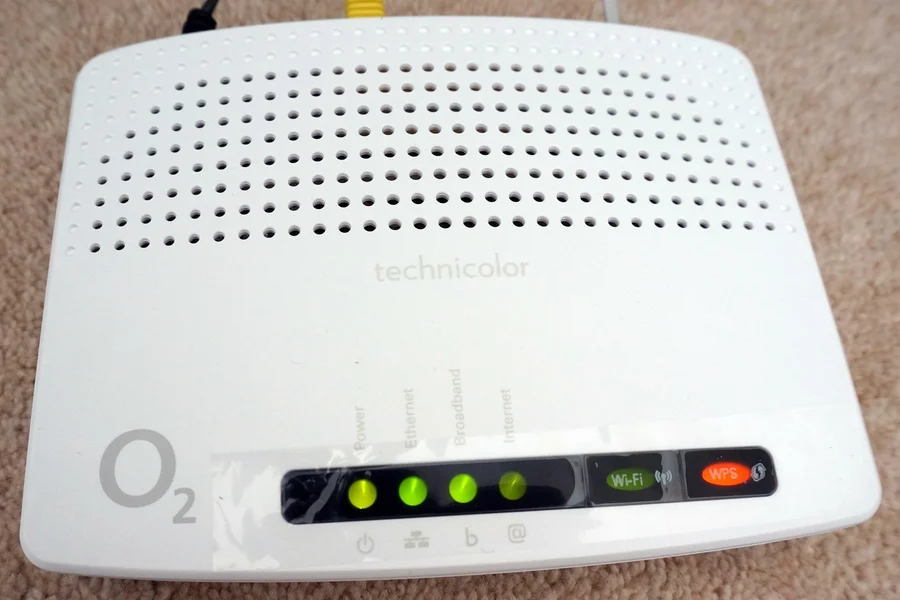
Photo: Ken218 · CC BY-SA 3.0 · Wikimedia Commons
Slow loading, stuttering video calls, “dead” spots in the bedroom. A weak Wi-Fi can be genuinely frustrating. Before you call your provider or buy yet another box, it pays to understand how the network actually works. Most problems can in fact be solved without changing your internet plan.
There is only one router in the network
Right at the start, one important detail that almost everyone gets confused about. A router is the device that brings the internet from your provider into your home and distributes it further. In an ordinary network there is always only one. Adding a second router usually solves nothing; on the contrary, it can cause conflicts on the network.
When Wi-Fi does not cover the whole house, the solution is not another router but an access point (AP). It is a device that connects to the existing network (ideally with a network cable) and creates Wi-Fi where the signal does not reach. So a router and an access point are not the same thing, even though many “combined” boxes from providers do both at once, and usually neither one properly.
1. Placement matters more than price
A router or access point hidden in a wiring cabinet, behind the TV or in a corner near the floor is the most common cause of a weak signal. Wi-Fi spreads sideways and is absorbed by walls, mirrors and water. So:
- Place the device as high as possible and in an open space, not inside a cabinet.
- Aim it at the centre of the flat or floor you want to cover.
- Avoid the vicinity of a microwave oven and thick load-bearing walls.
2. Use the faster bands: 5 GHz and 6 GHz
Wi-Fi today broadcasts on up to three bands, each with its strengths and weaknesses:
| Band | Range and walls | Speed and interference | Best for |
|---|---|---|---|
| 2.4 GHz | longest range, best through walls | slowest, crowded in dense housing | distant and older devices, smart home |
| 5 GHz | medium range | fast and cleaner | the main working band of most households |
| 6 GHz (Wi-Fi 6E/7) | shortest range | fastest, practically interference-free | fast link in the same room, new devices |
A practical rule: connect devices near the router to 5 or 6 GHz, and leave distant or “weaker” ones on 2.4 GHz. Many modern routers handle this for you automatically with a single network name (band steering).
3. Change a congested channel
Each band is divided into channels. In a densely built-up area, dozens of networks broadcast on the same channels and interfere with each other, which is felt mainly in the evening. Switching to a less occupied channel often noticeably improves both speed and stability. You do, however, need to know which channel is free at your location, and that is found out by measurement.
4. Do not ignore firmware updates
Manufacturers regularly release updates that fix bugs, speed up operation and, most importantly, close security holes. A router with outdated firmware is an easy target for attackers. While you are at it, disable WPS too, a needless hole through which someone can get onto the network even without the password. If you do not feel up to updating it yourself, we are happy to do it for you.
5. When you need to cover the whole house: access points, not “boosters”
In a two-storey house a single access point is not enough. The right solution is to deploy several access points linked by a network cable (ideally with power over the cable, so-called PoE) so that they hand over smoothly to one another. Cheap wireless signal boosters are a compromise that often reduces speed even further - why not to buy a repeater.
In practice, for quality coverage we reach for MikroTik or Ubiquiti devices. They are stable, can be managed centrally, and the customer gets one seamless network throughout the house or premises, with no dropouts when moving between rooms. A wireless mesh only makes sense where a cable genuinely cannot be run.
When to call a professional
We condensed all the steps from this article into a practical printable Wi-Fi checklist (PDF) - go through it top to bottom, most households find the culprit in the first half. Whether the changes helped is verified by measuring the speed before and after.
If you have tried the basic steps and the problem persists, the cause usually lies deeper: in a poor configuration, a congested band or outdated equipment from your provider.
Wi-Fi that works in every room
We will measure the real speed and signal quality at your home or business, propose the correct placement and set the network up so that it works reliably throughout the house.
Survey my networkThis article is part of our Computer networks overview.
Comments and questions 0
We keep the discussion to the point. Ads, links to other services, profanity and personal attacks will not be published. Neither will posts containing other people's personal data.
Frequently asked questions
Why is my signal full but the internet still slow?
Will replacing the router help?
Which band should I use: 2.4 or 5 GHz?
How many access points does a house need?
Is mesh a good solution?
What about a Wi-Fi repeater?
Need help with IT?
We will take care of your computers, networks and security - for businesses and households in the Liptov region.
Contact us